QR codes for your boards
Get your QR code sheet, print it, glass the codes into your boards and link them on Surf Neutral.
A QR code links the physical board to its page on Surf Neutral: its board passport. Shapers glass the code into the board, so it stays with the board for life. Anyone who scans it with a phone camera sees the board, the shaper, the brand and the board's history.
Get your QR codes
- Press QR in the manage menu, then Get QRs.
- Choose the number of QR codes and press Get QR's.
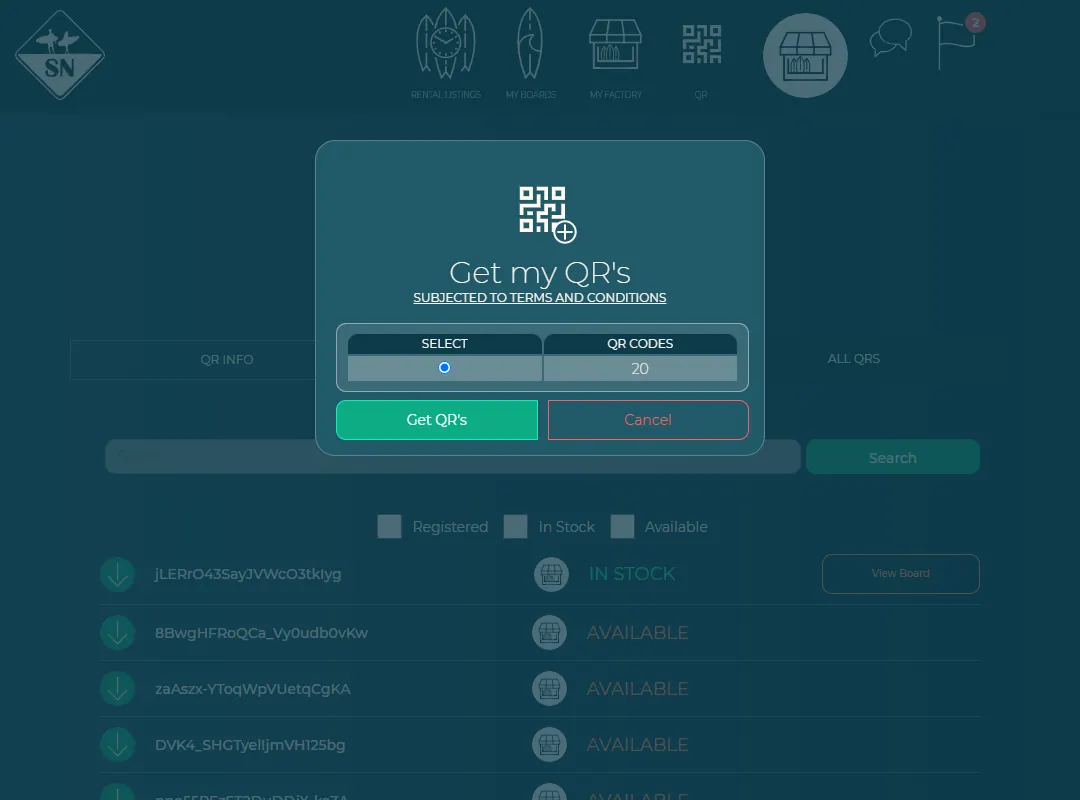
Choose how many QR codes you need. - Your first sheet is made straight away and downloads as a PDF. Need more later? Press Get QRs again: your request goes to the Surf Neutral team and we get in touch with you.
New QR codes are linked to you and your brand. Each one can be used for one board.
Your QR code sheets
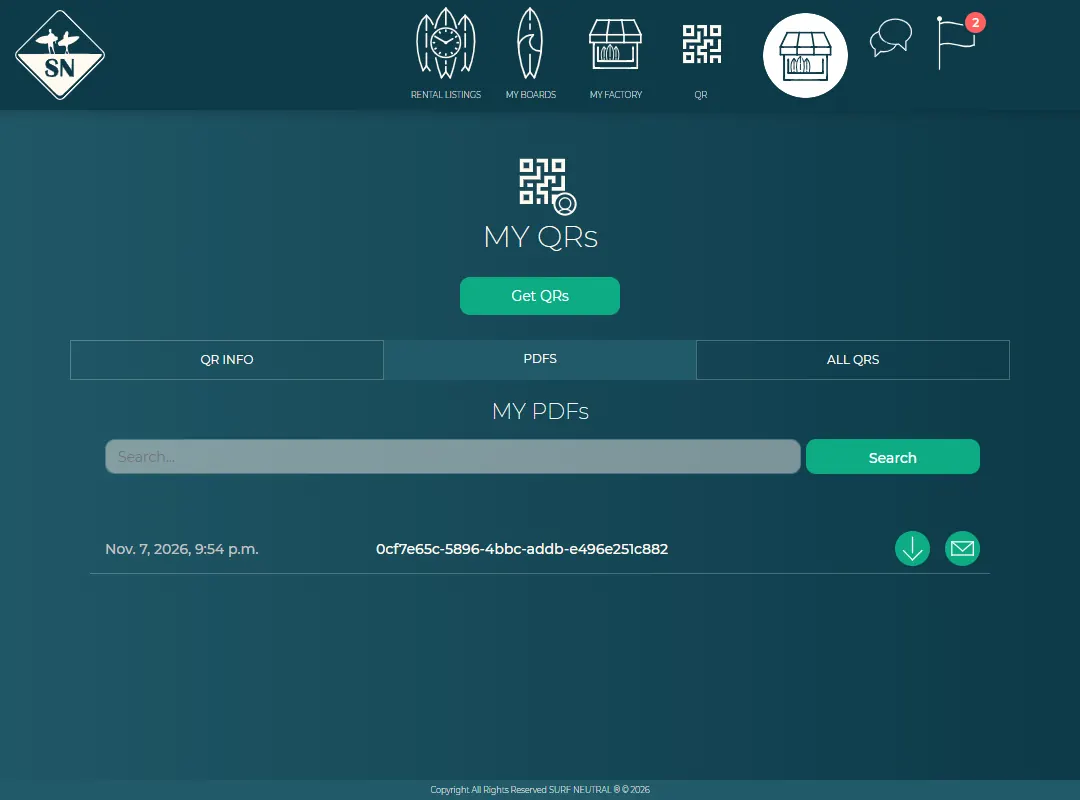
The PDFs tab lists every QR code sheet you received, with its date. Press the arrow to download a sheet again, or the envelope to email it, for example straight to your printer.
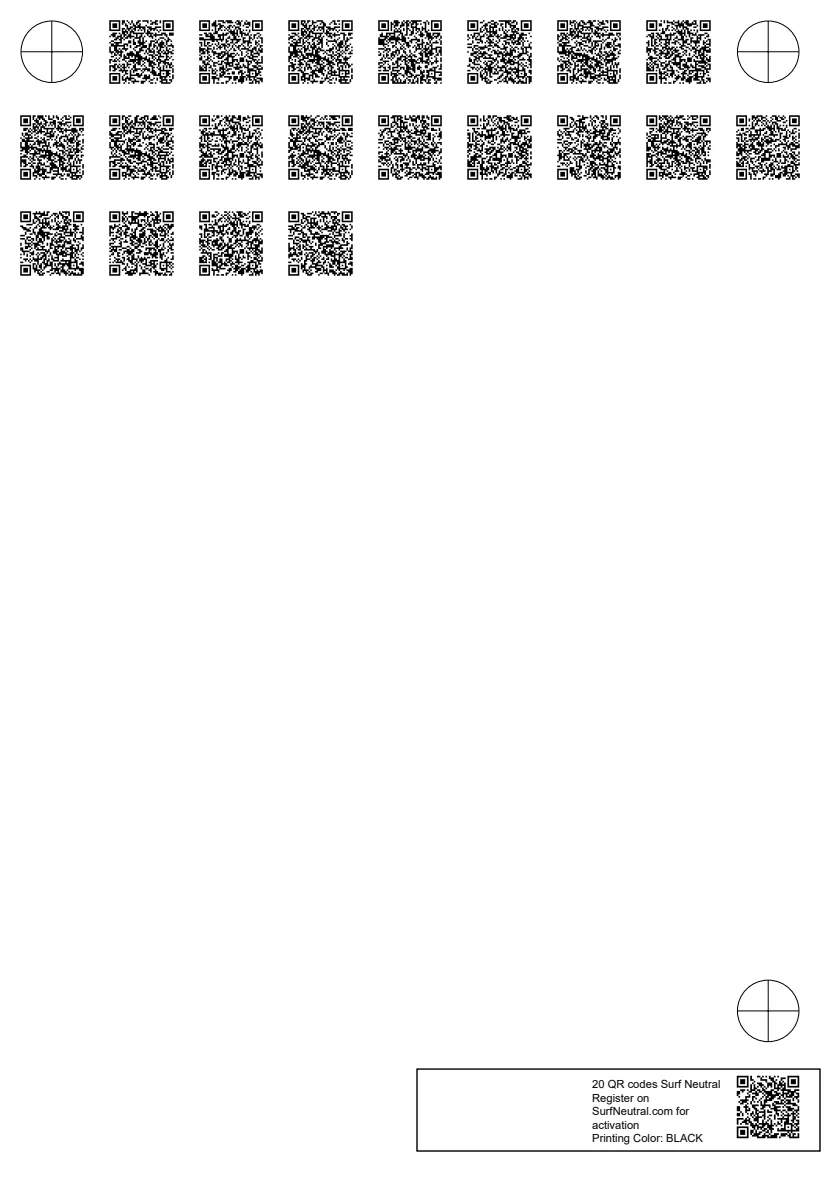
The QR code sheet (PDF)
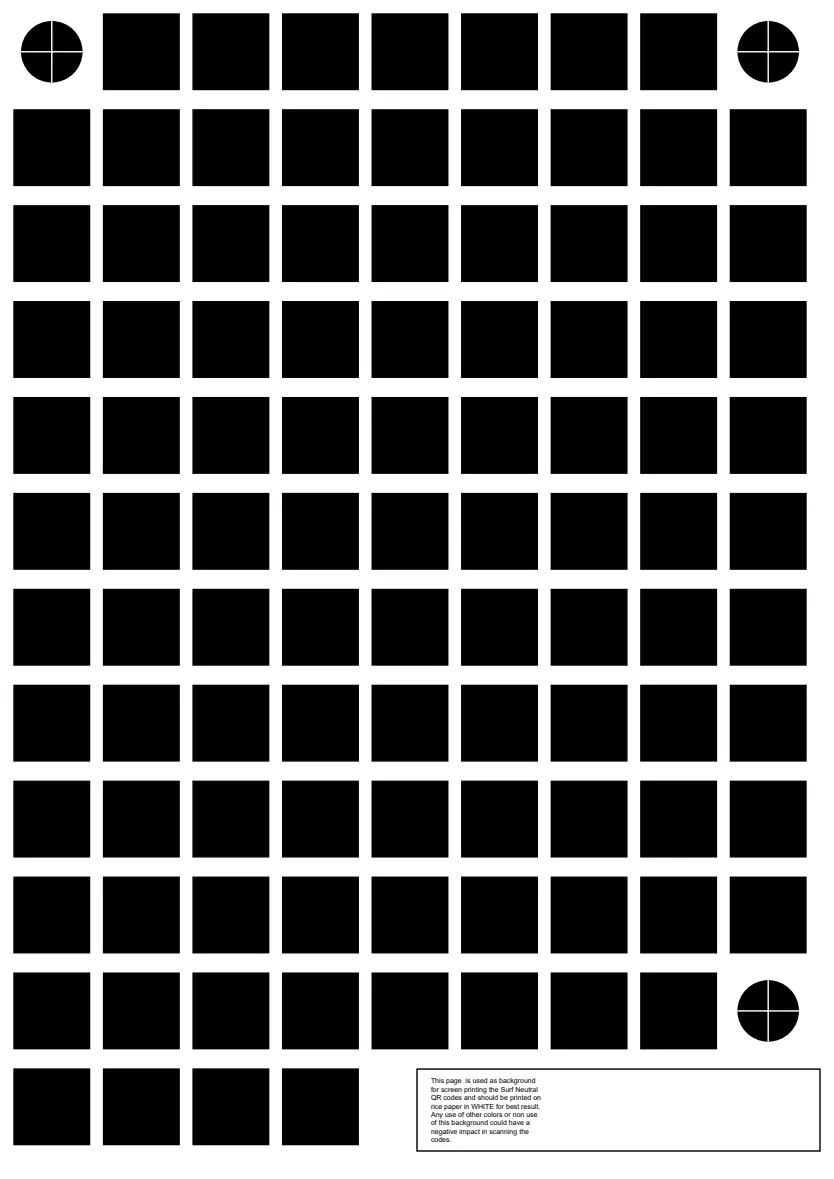
The PDF has two A4 pages, made for screen printing on rice paper that you laminate into the board.
Page 1: the QR codes, printed in black. The round markers in the corners help you line up the two pages. The box at the bottom says how many codes are on the sheet and has its own QR code.
Page 2: the background, printed in white on rice paper, under the QR codes. It gives each code a white square, so phones can read it on any board colour. Using other colours, or leaving out the background, can make the codes hard to scan.
Link a QR code to a board
Each QR code becomes active when you link it to a board: scan it when you register a board from your factory or upload a board.
See all your QR codes
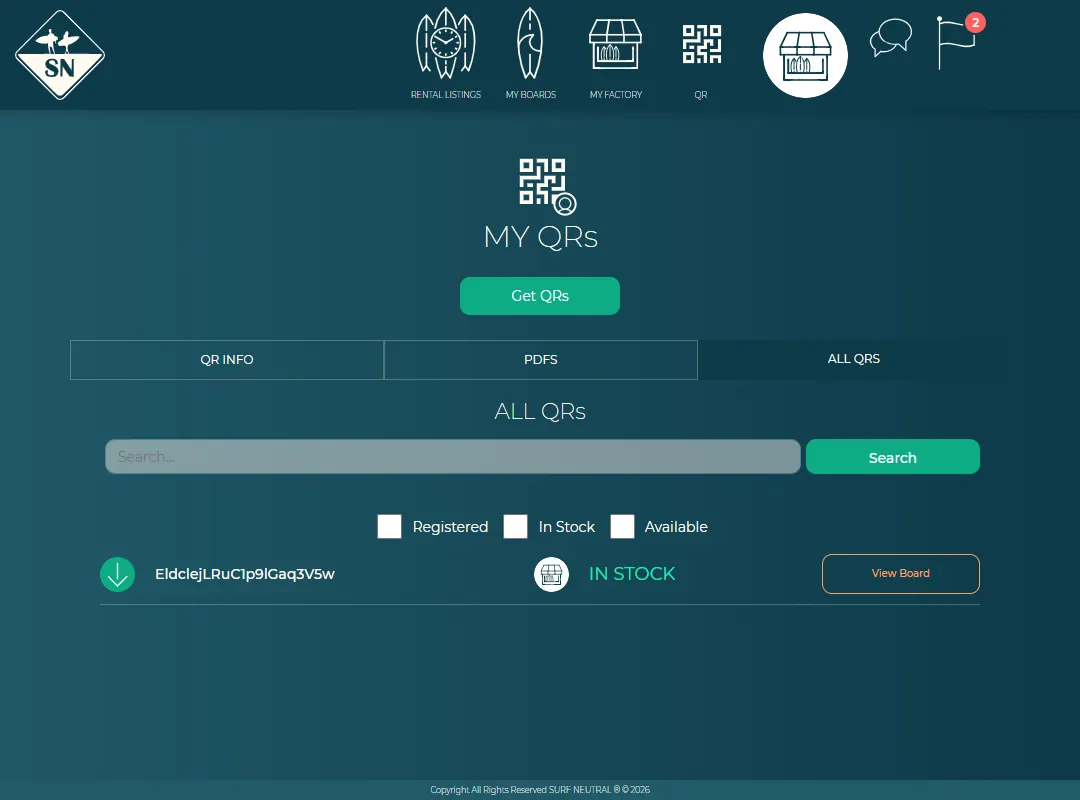
The All QRs tab shows every QR code and its status: available (not used yet), in stock (on a board you still own) or registered (on a board that belongs to a surfer). Press View Board to open the board. Use the search box and the tick boxes to filter.
Last updated 7 November 2026


